
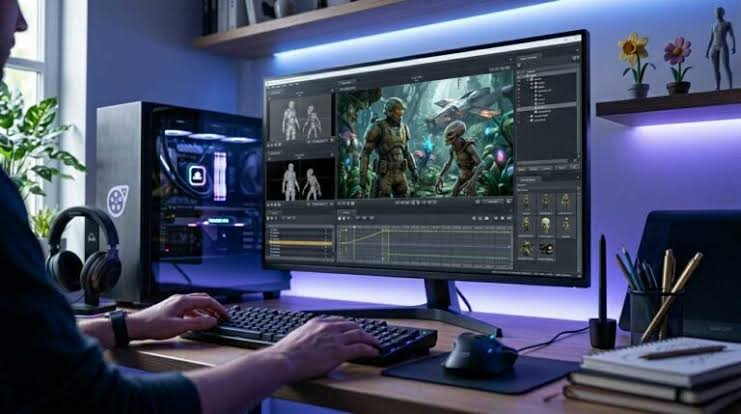
If you have spent time working with Source Filmmaker, you have probably come across the phrase SFM compile. At first, it can sound like a technical term that belongs only to developers or experienced animators. In reality, compiling is a normal part of preparing certain assets, models, textures, and project files so that they can work correctly inside the Source engine environment.
Understanding how SFM compile works can make a noticeable difference when you are creating custom characters, props, animations, or other content. Instead of repeatedly testing files without knowing what went wrong, you can understand how the different pieces fit together and troubleshoot problems more confidently.
This guide explains the concept in straightforward language. Whether you are completely new to Source Filmmaker or already comfortable with animation and want to improve your workflow, learning the basics of SFM compile can help you avoid many common technical problems.
What Does SFM Compile Mean?
The term SFM compile generally refers to the process of converting certain source files into formats that Source Filmmaker and the Source engine can actually use. Source Filmmaker does not simply read every working file in its original form. Many assets need to be processed before they become usable in the program.
For example, custom models may begin as source files created or exported from 3D software. Those files can contain information about geometry, bones, materials, animations, and other properties. A compilation process prepares that information for the Source engine by creating the appropriate game-ready files.
Compilation is therefore less about creating the artistic asset itself and more about preparing it for the technical environment. Once you understand that distinction, many SFM-related file problems become easier to diagnose.
Why Is SFM Compile Important?
The main reason compilation matters is compatibility. Source Filmmaker relies on specific formats and structures when loading models, materials, animations, and other assets. If an asset has not been prepared correctly, SFM may fail to load it or may display it incorrectly.
A properly compiled model can include features such as a functioning skeleton, appropriate materials, collision information, and animation support. If one of these elements is missing or incorrectly configured, you might see unusual behaviour inside Source Filmmaker.
Compilation also helps organise custom content. Instead of asking SFM to interpret an unfinished collection of source files, the compiled files provide the engine with information in a format it understands. This makes the workflow more predictable and helps separate the creative stage from the game-engine stage.
How SFM Compile Fits Into a Typical Workflow
A typical custom-asset workflow starts outside Source Filmmaker. You might create or edit a model using a 3D application, prepare textures in an image editor, and configure materials separately. At this stage, the files are still source assets rather than finished SFM content.
The next stage is preparing those assets for the Source engine. Depending on the type of content, this can involve creating configuration files, assigning materials, defining bones, setting up animations, and converting the relevant files into Source-compatible formats.
After compilation, the resulting files are placed in the appropriate game or SFM directory structure. Source Filmmaker can then detect and load the content. From there, you can test the model or asset directly inside an SFM project.
Preparing a Model Before Compilation
One of the most important parts of a successful SFM compile is preparing the model correctly before you attempt to compile it. A model that looks perfect in a 3D application can still cause problems once it enters the Source environment.
Pay particular attention to the model’s scale, orientation, skeleton, and naming conventions. Bones should be organised logically, and the model should not contain unnecessary objects that could create confusion during export. Materials should also be prepared with the Source engine’s requirements in mind.
It is also worth checking the model before beginning the final compilation process. Look for missing geometry, broken normals, incorrect weights, and unwanted modifiers. Fixing these problems early is much easier than trying to identify them after the compiled asset has already produced errors in SFM.
Understanding QC Files
For many Source-engine model workflows, the QC file is one of the most important pieces of the compilation process. It essentially provides instructions describing how the model should be processed and assembled.
A QC file can define information such as the model name, body geometry, materials, skeleton, animations, collision data, and other settings. The exact commands required depend on the type of model and the features it needs.
Beginners sometimes treat QC files as mysterious configuration documents. They are easier to understand if you think of them as a set of instructions for the compiler. If something goes wrong during compilation, checking the relevant QC settings is often a sensible place to start.
Common SFM Compile Problems
One common problem is a model failing to compile at all. This can happen because of incorrect paths, missing source files, invalid commands, incompatible model data, or mistakes in the QC configuration.
Another frequent issue is a model compiling successfully but appearing incorrectly inside Source Filmmaker. You might notice missing textures, strange proportions, invisible parts, incorrect bone behaviour, or other visual problems. Successful compilation does not always mean that the asset has been configured perfectly.
Animation problems can also appear after compilation. A model may load correctly but fail to move as expected because its skeleton, bone names, animation files, or weights do not match. This is why testing the finished asset inside SFM is just as important as checking the compiler output.
Fixing Missing Textures After Compilation
Missing textures are among the most recognisable problems when working with custom SFM content. A model can appear completely white, show a checkerboard pattern, or display only some of its materials.
The first thing to check is whether the material files exist in the expected directory. You should also verify that the model’s material references point to the correct locations. A small difference in a folder name or file path can prevent Source Filmmaker from finding the required material.
Texture files themselves may also need to be converted into formats supported by the Source engine. Simply placing a standard image file into an SFM folder does not necessarily make it available as a usable Source material. Proper material configuration is an essential part of the workflow.
SFM Compile and Custom Animations
Custom animations add another layer of complexity to the compilation process. An animation created in external software needs to correspond correctly with the model’s skeleton before it can work properly in Source Filmmaker.
Bone names and hierarchy are especially important. If an animation expects a bone that does not exist on the target model, or if the skeleton differs significantly from what the animation was designed for, the result can be broken or incomplete movement.
Testing animations individually is a useful approach. Instead of importing a large collection of animations and trying to identify the problem afterward, test a few at a time. This makes it much easier to determine which file or configuration is responsible for unexpected behaviour.
Best Practices for a Cleaner SFM Compile Workflow
A good SFM compile workflow starts with organisation. Keep source models, textures, QC files, compiled assets, and temporary files in clearly labelled locations. This reduces confusion when you need to make changes later.
It is also helpful to maintain backups of working versions. If a new compilation introduces a problem, having the previous version available can save significant time. This is particularly useful for large projects where several assets depend on one another.
Finally, avoid changing multiple things at once when troubleshooting. If you modify the QC file, model structure, materials, and animations simultaneously, it becomes difficult to know which change solved or caused the problem. A controlled testing process is much more efficient.
Choosing the Right Tools for SFM Compile
The tools you use depend on the type of content you are creating. A 3D modelling application may be needed for preparing geometry and skeletons, while Source-specific tools handle the conversion and compilation stages.
Different versions of Source-based software can also have different requirements. A workflow that works perfectly for one game or Source branch may require adjustments for another. This is why it is important to understand the target environment rather than blindly copying settings from an unrelated project.
When choosing tools, reliability is generally more important than having the largest collection of features. A simple workflow that you understand is often better than a complicated setup containing several utilities you rarely use.
How to Troubleshoot SFM Compile Errors
When a compilation error appears, start by reading the complete error message rather than immediately changing random settings. Compiler messages often provide useful clues about the missing file, invalid command, or problematic asset.
Check file paths carefully. A surprisingly large number of compilation issues come from incorrect directories, spelling differences, missing extensions, or files stored in the wrong location. Make sure the compiler is looking at the same files you believe it is using.
If the problem continues, simplify the project. Remove optional features and test a basic version of the model first. Once the basic asset compiles and loads correctly, gradually add materials, animations, and other components. This method makes complicated problems much easier to isolate.
Why Testing Inside Source Filmmaker Matters
Compilation is only one stage of the process. The real test is what happens when the resulting asset is loaded into Source Filmmaker. An asset can technically compile without producing the result you expected.
After importing a custom model, check its appearance from several angles. Test the materials, inspect the bones, move the controls, and verify that the model behaves correctly during animation. If it has facial controls or special features, test those individually as well.
It is also worth testing the asset in an actual scene rather than relying only on the model preview. Lighting, shadows, materials, and animation can behave differently once the asset is being used in a complete SFM project.
Making SFM Compile Easier for Beginners
If you are new to SFM compile workflows, do not try to start with the most complicated possible model. Begin with a simple asset and learn how the basic pieces connect. Once you understand the relationship between source files, configuration files, compiled files, and SFM, more advanced projects become much less intimidating.
Documentation and community-created guides can also be valuable, particularly when you encounter an error you have never seen before. However, always consider whether the instructions apply to your particular Source Filmmaker setup and asset type.
Most importantly, treat errors as information rather than failures. A compiler error is often telling you exactly which part of the workflow needs attention. Learning to interpret those messages is one of the most useful skills you can develop as an SFM creator.
Final Thoughts on SFM Compile
SFM compile is an important part of working with custom content in Source Filmmaker, especially when you are creating or importing your own models, materials, and animations. While the process can initially seem technical, its basic purpose is straightforward: prepare source assets so the Source engine can understand and use them correctly.
The most reliable approach is to work methodically. Prepare your assets carefully, keep your files organised, understand the role of configuration files, check paths and materials, and test your finished content directly inside Source Filmmaker.
With experience, compilation becomes less of a frustrating technical obstacle and more of a normal part of the creative workflow. Once you understand how each stage connects, you can spend less time chasing errors and more time building the scenes, characters, and animations you actually want to create.
You May Also Read: Elitemagazin